B2 / Apps
PDFMergeX.
Merge selected PDFs straight from Windows File Explorer. Local processing, a simple context-menu command, and no account required.

PDFMERGEX IN ACTION
Three steps. One PDF.
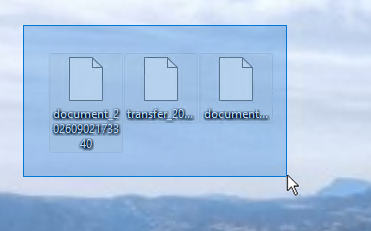
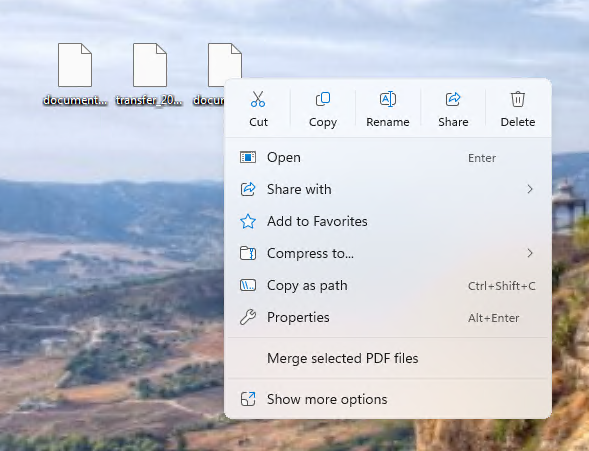
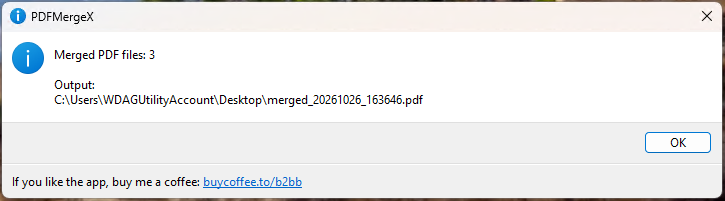
Select. Right-click. Merge.
PDFMergeX combines two or more PDF files into a single document using the Merge selected PDF files command in Windows File Explorer. It works locally on your computer, without uploading your documents to a processing service.
- Install PDFMergeX from Microsoft Store.
- Select at least two PDF files in File Explorer.
- Right-click the selection and choose Merge selected PDF files.
- Find the merged PDF beside the first input file. The completion dialog shows its location.
The default filename is merged_YYYYMMDD_HHMMSS.pdf. Opening PDFMergeX from the Start menu shows instructions for using the Explorer command.
Built for everyday PDF merging
- Local and offline: merging does not require an internet connection. No account, advertising, or analytics in the application.
- Original files stay intact: the application reads your source files and creates a new PDF. It refuses to overwrite an existing output file.
- Pages and forms: the merge engine carries over page content, page sizes, annotations, and interactive form fields, including fields with conflicting names.
- Windows integration: installation registers the File Explorer command, including the modern context menu on Windows 11. Uninstallation removes the command.
- English and Polish: menus and dialogs use Polish when your Windows display language is Polish, and English otherwise. Technical error details may remain in their original language.
- Command-line control: specify the input order and output path with the command-line interface. See the support instructions.
Requirements and practical limits
The package targets Windows 10 version 1809 or later, including Windows 11. Check Microsoft Store for availability on your device.
PDFMergeX merges all pages from the supplied PDFs. Within each document, page order is retained; documents follow the order supplied by Explorer or the command line. For a specific document order, use the command-line interface.
PDFs that require an opening password are rejected; there is no password-entry interface. Document-level bookmarks and digital signatures are not preserved. Output PDFs are not encrypted by PDFMergeX. Keep the original documents and check the result before using it.
Help and privacy
Find troubleshooting, command-line examples, and a contact form on the support page. The Privacy Policy explains local processing, diagnostic logging, and information you choose to send for support.
Published by Bartlomiej Budzynski, an individual developer using the Microsoft Store display name B2BB.